Procedures
Verifying a download before you write it
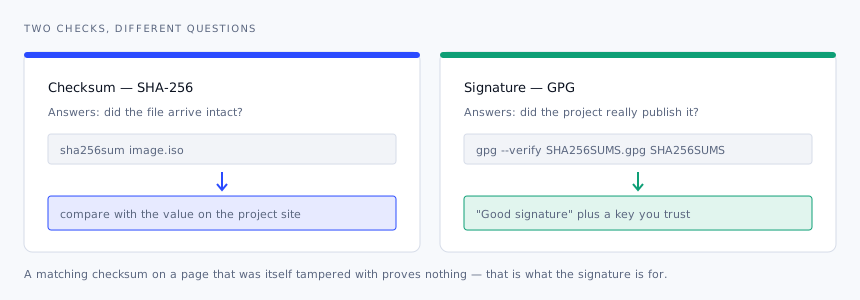
A checksum tells you the file arrived intact. A signature tells you the project published it. They answer different questions and the second one is the one people skip.
Key points
- A checksum detects a truncated or corrupted download.
- A signature ties the checksum file to the project's key.
- Both are quick; neither is optional for media you will boot other people's machines with.
Why bother
Two failure modes make this worth the minute it takes. The mundane one is corruption — an interrupted download, a flaky connection, a disk that dropped a block. The image looks complete and fails in the middle of an installation with an error that sends you looking in entirely the wrong place.
The second is substitution. Popular system images are a standing target for lookalike download pages. If the file came from anywhere other than the project's own infrastructure, a signature check is the only thing standing between you and running unknown code with full hardware access.
Running the checksum
Windows (PowerShell)
Get-FileHash .\image.iso -Algorithm SHA256 | Format-ListLinux
sha256sum image.iso

# or, with the project's checksum file in the same folder
sha256sum -c SHA256SUMS --ignore-missing
macOS
shasum -a 256 image.isoCompare the result with the value published next to the download. Copy and paste rather than reading it across — a single altered character is the whole point of the exercise, and the human eye is bad at long hexadecimal strings.
Checking the signature
A checksum published on a page that was itself tampered with proves nothing. Projects therefore sign the checksum file with a GPG key whose fingerprint they publish separately.
# fetch the project's signing key, fingerprint taken from their documentation
gpg --keyserver keyserver.ubuntu.com --recv-keys <FINGERPRINT>

# verify the checksum file, then verify the image against it
gpg --verify SHA256SUMS.gpg SHA256SUMS
sha256sum -c SHA256SUMS --ignore-missing
The fingerprint must come from the project's documentation, ideally a page you reached independently — not from the same page that offered the file.
Reading the result
| Output | Meaning |
|---|---|
image.iso: OK | Checksum matches — the file is intact |
Good signature from … | The checksum file was signed by that key |
WARNING: This key is not certified with a trusted signature | Normal for a key you have not personally signed. Confirm the fingerprint matches the published one and move on |
BAD signature | Stop. Do not use the file |
FAILED on a checksum line | Corrupt or altered download — fetch it again from the source |
When it does not match
- Download again from the project's own address, over a different network if you can.
- Confirm you are comparing against the checksum for that exact edition and architecture — variants are easy to mix up.
- Check that the download completed; a proxy or captive portal can silently truncate a large file.
- If a fresh download from the official source still fails, treat the file as untrustworthy and report it to the project.
Keep the checksum file. Storing it next to the image on your drive means you can re-verify months later without going back to find the page again.