Fundamentals
Secure Boot without the folklore
Secure Boot is not a lock on your computer and not a hurdle to be tricked. It is a signature check, and once you know what it checks, the error messages stop being mysterious.
Key points
- Secure Boot checks that each stage of the boot chain carries a signature the firmware trusts.
- Major distributions ship signed loaders and start with the feature left on.
- The setting lives in firmware setup and is yours to manage on hardware you own.
What it verifies
Secure Boot is a UEFI feature that refuses to execute a boot binary unless it is signed by a key the
firmware has been told to trust. Those keys live in four databases: the Platform Key that controls the
others, Key Exchange Keys, the allowed-signature database db, and the revoked-signature
database dbx. Most consumer machines ship with Microsoft's certificates pre-loaded, which is
why so much third-party software is signed by them.
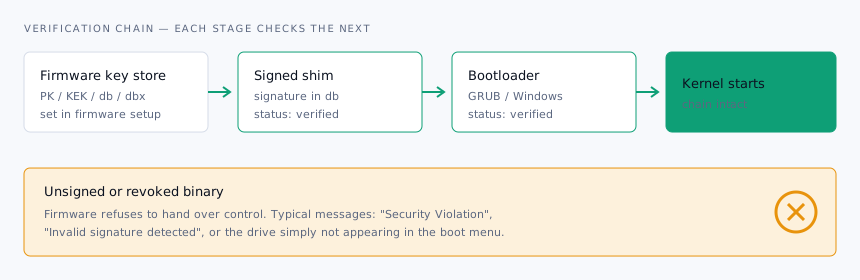
The check is a chain. Firmware verifies the first loader, that loader verifies what it calls next, and so on up to the kernel. Break any link and the chain stops there.
Why media gets refused
Four situations account for nearly everything you will meet in practice.
- The image predates its own signing arrangements. Older releases of niche distributions and most rescue toolkits were never signed. They boot fine with the feature off and never with it on.
- A revocation has caught up with the image. Firmware updates periodically add entries to
dbx. An ISO that worked last year can be refused today on freshly updated firmware — the fix is a current release of the same image, not a change of tool. - The boot chain was rebuilt by a tool. Some preparation methods replace the loader with their own. If that replacement is unsigned, the chain breaks even though the image inside is fine.
- A custom kernel module is in the way. Signed loader, signed kernel, unsigned driver — common with out-of-tree graphics or virtualisation modules, and it surfaces after installation rather than during it.
Typical wording on screen: Security Violation, Invalid signature detected, Access denied, or the drive simply not appearing in the boot menu at all.
Your realistic options
| Option | When it fits | Cost |
|---|---|---|
| Use an image that ships a signed loader | Mainstream distributions, current releases | None — this is the intended path |
| Enrol the image's own key when prompted | Distributions that offer key enrolment at first boot | A few extra screens, one reboot |
| Turn the setting off temporarily | Rescue and diagnostic media on your own hardware | The verification is not performed while it is off |
| Manage your own keys | Lab and enterprise builds with a signing process | Real work; needs documentation and recovery planning |
On managed hardware, stop here. Work laptops, leased machines and anything covered by a corporate policy often have this setting locked by an administrator password for good reason. Ask the team that owns the device rather than looking for a way around the control.
Changing the setting on your own machine
Write down the current state
Before touching anything, note whether Secure Boot is enabled, which mode it is in, and whether a supervisor password exists. You want to be able to put it back.
Open firmware setup
The key is shown briefly at power-on — usually
F2,Del,F10orEsc. On Windows you can also hold Shift while choosing Restart, then go to Troubleshoot → Advanced options → UEFI Firmware Settings.Find the entry
It sits under Security or Boot. Some firmware requires you to set a supervisor password before the option becomes editable, and some requires switching from "Standard" to "Custom" mode first.
Save, install, then restore
Do what you came to do, then return the setting to its previous state once the system is installed and running. Leaving verification off permanently gives up a protection you paid for.
After the system is installed
If you install a Linux distribution with the feature enabled and later need a module that is not signed — a graphics driver, a virtualisation kernel module — the distribution will normally offer to enrol a machine owner key during installation. That involves setting a one-time password and confirming it in a blue enrolment screen on the next reboot. It is a legitimate mechanism, it keeps verification on, and it is preferable to turning the feature off and forgetting about it.
Windows has its own requirement here as well: modern releases expect both UEFI mode and Secure Boot, and the setup process will tell you if the machine does not meet it.