Fundamentals
What a bootable drive actually is
Copying an ISO file onto a memory stick produces a stick with a file on it. Making that stick start a computer is a different job, and understanding why is the shortest route to fixing every problem that follows.
Key points
- Firmware looks for a specific file or sector, not for an ISO.
- Three preparation methods exist: raw write, file copy, image loader.
- The method you choose decides whether the drive can hold more than one system.
What "bootable" means
When a computer powers on, the operating system does not exist yet. The firmware on the motherboard — UEFI on anything built in the last decade, a legacy BIOS on older machines — runs first, checks the hardware, then goes looking for something to hand control to. A drive is bootable when it contains that something in the exact place the firmware expects it.
On a UEFI machine, the expectation is precise: a partition formatted as FAT32, flagged as an EFI System
Partition, containing a file at \EFI\BOOT\BOOTX64.EFI. On a legacy BIOS machine the
expectation is older and blunter: executable code in the first 512-byte sector of the disk. Neither of them
knows what an ISO file is.
Why copying is not enough
An ISO is an archive — a byte-for-byte picture of an optical disc, containing its own file system inside a single file. Drag it onto a USB stick and the firmware sees one large file with an unfamiliar extension in a file system that contains no boot code. Nothing about the drive says "start here".
There is one narrow exception worth knowing. Some Windows installation images and a few Linux images are
published so that their contents can simply be unpacked onto a FAT32 partition and will boot on UEFI, because
the required EFI\BOOT folder is already inside. That works when it works, and fails silently
when the image is not built that way, which is why tools exist.
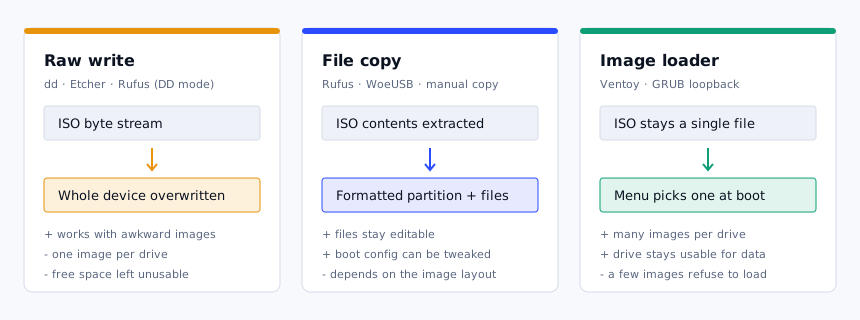
The three preparation methods
Raw write
The image is streamed onto the device sector by sector, replacing everything: partition table, file systems,
data. What you end up with is a copy of the disc, boot code included. This is what dd does on
Linux and macOS and what balenaEtcher does everywhere. It is the most faithful method and the least flexible
one — a 4 GB image on a 128 GB stick leaves the remaining 124 GB stranded until you reformat.
File copy
The tool creates a partition, formats it, unpacks the image's contents into it, then installs boot code appropriate for the target firmware. Rufus and WoeUSB work this way by default. The advantage is that the result is an ordinary readable drive: you can edit a boot menu entry, add a driver, or drop an answer file next to the installer.
Image loader
The drive gets a small boot partition and a large data partition. Images are copied onto the data partition as plain files and a menu at boot time loads whichever one you pick, presenting it to the operating system as though it were a disc. Ventoy is the best known implementation of this idea. One drive holds a dozen systems and still works as a normal stick for documents.
What you need before you start
- A USB drive you are willing to erase completely. Check it twice — every method destroys what is on it.
- Capacity with room to spare: 8 GB for most Linux images, 16 GB or more for current Windows images.
- The image itself, downloaded from the project or vendor that publishes it.
- The published checksum for that image, so you can confirm the download arrived intact.
- Administrator or root access on the machine you prepare the drive with.
About cheap sticks. Flash memory wears out and counterfeit capacity is a real problem in the low-cost market. If a drive fails halfway through writing, or the image verifies before writing and fails after, suspect the hardware before you suspect the tool.
Choosing your path
Answer one question: how many systems does this drive need to carry?
One, and you want the simplest possible route — use a raw write or a file-copy tool and be done in five minutes. Several, or you rebuild machines often enough that reformatting is a chore — use an image loader and copy files instead of rewriting drives. Everything else in this guide series follows from that choice.
Next step. Before you write anything, find out whether the target machine boots in UEFI mode or legacy mode. It changes the partition scheme, the file system, and sometimes the tool. That comparison is here.