Fundamentals
MBR and GPT: choosing a partition table
A partition table is a map at the front of a disk. Two formats are in circulation, they are not interchangeable, and picking the wrong one is a common reason a prepared drive never appears in the boot menu.
Key points
- MBR is limited to 2 TB and four primary partitions; GPT is not.
- UEFI expects GPT for internal disks — removable media is treated more leniently.
- Converting between them is a deliberate operation, never a side effect.
What the table does
Storage devices present themselves as a long line of numbered sectors and nothing more. Everything above that — where a file system starts and stops, which region holds an operating system — is written into a small structure at the beginning of the disk. That structure is the partition table. Damage it and the data is still physically present but nothing knows where to look.
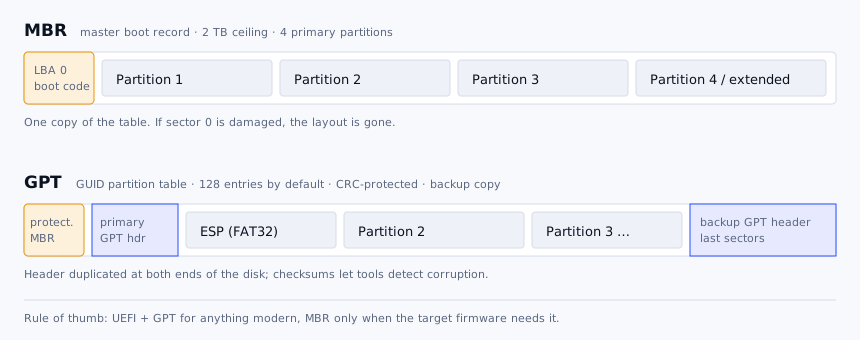
MBR: the old map
The master boot record occupies the first 512 bytes: boot code, then four 16-byte entries, then a signature. Four entries means four primary partitions, worked around historically by turning one of them into an extended partition holding a chain of logical ones. Sector addresses are stored in 32 bits, which sets the well-known 2 TB ceiling.
It remains the right choice in exactly one situation: media that must start on legacy BIOS machines. It is still widely understood by every tool ever written, which is not nothing.
GPT: the current one
The GUID partition table addresses sectors with 64 bits, stores 128 entries by default, gives every partition a globally unique identifier and a readable name, and protects both the header and the entry array with CRC32 checksums. A second copy lives in the last sectors of the disk, so a damaged primary header can be rebuilt from the backup.
The first sector still holds a "protective MBR" — a single entry spanning the whole disk, describing a type that older tools do not recognise. Its only job is to stop legacy software from concluding the disk is blank and helpfully offering to initialise it.
Which one for a USB drive
| You are preparing | Use | Reason |
|---|---|---|
| Install media for a UEFI machine | GPT | Matches the firmware's expectations; no CSM needed |
| Media that must work on 2010-era hardware too | MBR | Legacy firmware cannot read GPT at all |
| A drive for a mixed fleet | MBR with a FAT32 EFI folder, or an image loader | Most UEFI firmware still boots MBR media via the fallback path |
| An internal disk over 2 TB | GPT | MBR cannot address the space |
Removable media is a special case. Firmware is generally happy to find
EFI\BOOT\BOOTX64.EFI on a FAT32 partition regardless of which table the stick uses. That is
why MBR-formatted USB drives often boot fine on UEFI machines, and why the advice for internal disks does
not transfer directly.
Checking what a disk uses
Windows
Open Disk Management, right-click the disk number on the left, and read the menu: if it offers Convert to GPT Disk the disk is currently MBR, and the reverse. Or from PowerShell:
Get-Disk | Format-Table Number, FriendlyName, PartitionStyle, SizeLinux
lsblk -o NAME,SIZE,TYPE,MOUNTPOINT
sudo fdisk -l /dev/sdX   # "Disklabel type: gpt" or "dos"
macOS
diskutil list
diskutil info disk2 | grep "Content (IOContent)"
Before you repartition
- Confirm the device identifier twice. On Linux,
lsblkbefore and after plugging the stick in. - Copy anything you care about off the drive — repartitioning discards it.
- Unmount every partition on the target device first.
- Decide the scheme from the oldest machine you need to support, not the newest.
- If the drive later refuses to mount anywhere, recreate the table rather than repairing it — it is a work drive.