Fundamentals
Choosing a file system for a bootable drive
FAT32 is the only file system every UEFI firmware can read, and it cannot hold a file larger than 4 GB. Most modern Windows images are larger than 4 GB. Working around that collision is most of this topic.
Key points
- UEFI firmware reads FAT32 and, in practice, nothing else without help.
- A single file on FAT32 stops at 4 GB minus one byte.
- The usual answer is a small FAT32 boot partition plus a larger partition for payload.
Why FAT32 keeps coming back
The UEFI specification requires firmware to support FAT — that is the guarantee bootable media is built on. Anything else is optional, and optional means absent on most hardware. A stick formatted NTFS may not appear in the boot menu at all, not because the drive is broken but because the firmware cannot open it to look for a loader.
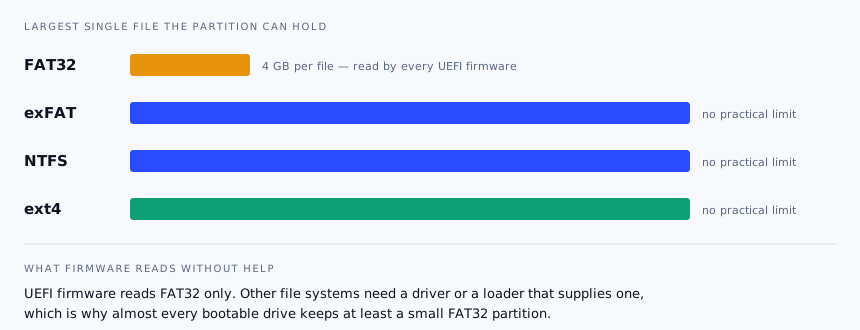
The 4 GB wall
FAT32 stores file size in a 32-bit field, so no single file can exceed 4,294,967,295 bytes. Current Windows
installation images ship an install.wim or install.esd that is comfortably past
that. Copy the ISO contents to a FAT32 stick and the copy fails partway through with an unhelpful message
about the file being too large for the destination.
Three ways out, all of them in routine use:
- Split the oversized file. A single
install.wimcan be divided intoinstall.swmchunks under the limit, which Windows setup reads without complaint. Most preparation tools do this automatically when they detect the problem. - Use NTFS plus a driver shim. The tool creates a small FAT32 partition holding a UEFI NTFS driver, which then hands over to the NTFS partition with the real content. This is how Rufus handles large images.
- Keep the ISO whole and load it. With an image loader the ISO stays a single file on an exFAT or NTFS partition, so the limit never applies.
The alternatives
| File system | Read by UEFI | Max single file | Best used for |
|---|---|---|---|
| FAT32 | Yes, always | 4 GB | The boot partition, small Linux images |
| exFAT | Rarely | Effectively unlimited | Data partition on a multi-image drive; cross-platform |
| NTFS | Only with a driver | Effectively unlimited | Windows media with a large install image |
| ext4 | No | Effectively unlimited | Linux-only drives, persistence overlays |
macOS note. exFAT is read and written natively; NTFS is read-only without extra software. If a drive has to travel between macOS and Windows, exFAT is the path of least resistance.
Splitting the difference
The layout that solves almost every case is two partitions: a small FAT32 partition holding the boot files, and a large partition in whatever file system suits the payload. Firmware reads the first, the loader in it reads the second. This is precisely what image-loader tools set up for you, and what Rufus builds on its own when an image demands it.
If you are doing it by hand, keep the FAT32 partition first on the device and give it 100–300 MB. Some firmware only inspects the first partition it finds.
Cluster size and speed
Formatting dialogs offer an allocation unit size, and the default is nearly always right. The trade-off is simple: larger clusters waste more space on small files and reduce the number of allocation operations for large ones. On a stick that mostly holds a handful of multi-gigabyte images, a larger cluster size does no harm and may help slightly.
Copy speed is dominated by two other things: whether the port and the stick both actually run at USB 3.x rates, and the quality of the flash controller. A cheap drive on a fast port will still write at 12 MB/s and no format option changes that.
A quick sanity check. If a 5 GB copy is going to take an hour, cancel it, plug into a different port — blue or marked SS — and try once more before blaming the tool.