Fundamentals
Legacy BIOS and UEFI: what actually changed
Most drives that refuse to boot are perfectly good drives prepared for the wrong firmware mode. Ten minutes spent on this distinction saves hours of blind retries.
Key points
- UEFI loads a file from a FAT32 partition; legacy BIOS runs code from the first sector.
- CSM lets modern firmware start legacy media — and quietly causes half of all confusion.
- The mode used at install time is the mode the installed system keeps.
Two ways to start a computer
The legacy BIOS approach dates to the early 1980s and is beautifully crude. The firmware reads the first sector of the first bootable device it finds, checks for a two-byte marker at the end, and executes whatever is in there. That is 446 bytes of usable space — barely enough to load a second stage from elsewhere on the disk, which is exactly what bootloaders do.
UEFI replaced this with something closer to a small operating system. The firmware understands partitions,
reads the FAT file system natively, keeps a list of boot entries in non-volatile memory, and loads
executables in a defined format. Instead of running mystery bytes from sector zero, it loads a named
.efi file from a known folder.
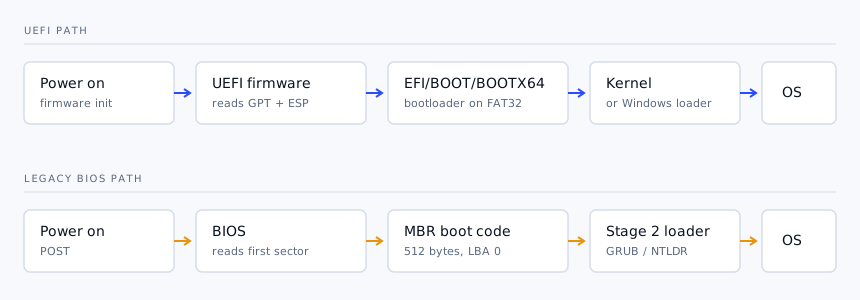
How UEFI finds a bootloader
Two mechanisms operate side by side.
The first is the boot entry list stored in firmware variables. When a system is installed it registers itself — "Windows Boot Manager", "ubuntu", "Fedora" — pointing at a file path on a specific partition. This is what the boot order in firmware setup is reordering.
The second is the removable-media fallback, and it is the one that matters for USB drives. If no registered entry applies, UEFI looks on each FAT partition for a default file:
| Architecture | Fallback path on the drive |
|---|---|
| 64-bit x86 | \EFI\BOOT\BOOTX64.EFI |
| 32-bit x86 | \EFI\BOOT\BOOTIA32.EFI |
| 64-bit ARM | \EFI\BOOT\BOOTAA64.EFI |
This is why a correctly prepared USB drive appears in the boot menu on a machine that has never seen it before. It is also why a drive formatted as NTFS may not appear at all: the firmware cannot read the partition to find the file. Some tools work around this by adding a small FAT partition that supplies an NTFS driver first.
CSM and the compatibility trap
The Compatibility Support Module is a legacy BIOS emulation layer inside UEFI firmware. With CSM enabled, a machine can start media prepared either way — which sounds helpful and creates two specific problems.
The duplicate entry. With CSM on, the same USB stick often appears twice in the boot menu: once as "UEFI: SanDisk Cruzer" and once as plain "SanDisk Cruzer". Those are not the same thing. Picking the wrong one installs the operating system in the wrong mode, and you find out weeks later when something does not work.
The second problem is subtler: a system installed in legacy mode cannot simply be switched to UEFI mode afterwards. The partition table, the location of the bootloader and the firmware entries all differ. Converting is possible but it is a deliberate procedure, not a setting.
Current firmware from most vendors has dropped CSM entirely on newer platforms. If your machine has no such option, it is UEFI only, and legacy-mode media will never appear.
Checking which mode you are in
On Windows
Press Win + R, run msinfo32, and read the BIOS Mode line in System Summary.
It says either UEFI or Legacy.
On Linux
ls /sys/firmware/efi
# directory exists  -> booted in UEFI mode
# no such directory -> booted in legacy mode
In firmware setup
Look for entries named Boot Mode, CSM, Legacy Support or UEFI/Legacy Boot. Vendors place them under Boot, Advanced or Security depending on the make. Note the current value before you change it.
What this means for your drive
| Target | Partition scheme | Boot file system | Watch out for |
|---|---|---|---|
| UEFI only (2015 and later) | GPT | FAT32 | Secure Boot state; files over 4 GB |
| UEFI with CSM available | GPT or MBR | FAT32 | Choosing the UEFI entry in the boot menu |
| Legacy BIOS only | MBR | FAT32 or NTFS | 2 TB ceiling; boot flag on the partition |
| Mixed fleet | MBR with an EFI partition, or an image loader | FAT32 | Test on the oldest machine you support |
If you maintain machines of different ages, a drive that carries images as files and boots on both firmware types is worth the setup time. That approach is covered here.